Using Partigen


Using The Partigen IDE > Motion Tweens and Guides


Motion Tweens and Guides

This section will go over the steps needed to create a frame-based motion tween and motion guide.

  1. First, set up a new document within the guidelines to using Partigen, or open the Quickstart template: File > New then click the Templates tab and go to Partigen.

    emitter ide screenshot

    This has the document setup with the most basic way to use Partigen correctly. Make sure you open the Partigen parameters to auto load in your licensing information.

  2. Next, create frames all the way to 100 and create a new key frame at 100 on the actions layer. Go to the 3rd frame on the actions layer and delete the stop() function like so:

    emitter ide screenshot


  3. Now right click the emitter frames and select 'Create Motion Tween'. Once you do this, make sure to go back to the first emitter key frame and select the emitter on the stage. Once you select it, change the symbol type to MovieClip instead of graphic and give it an instance name of 'mtemitter'.

    emitter ide screenshot

    Now to configure your emitter, you have to double click and edit inside of the new symbol.

  4. You can now create whatever kind of motion tween you like. But if you test your movie now, the particle don't really follow how you'd expect them to. Enabling 'Outside' on the emitter won't work, as that will just be creating particle into the new 'mtemitter' MovieClip. To fix this, we need a little AS magic to configure the emissiontarget.
    But first we need to get the path of the actual emitter. To do this, we can use the output panel! When we tested our movie, it tells us the full path of the emitter created.

    emitter ide screenshot

    So let's just copy that from the output panel and use it for configuring the emissiontarget.

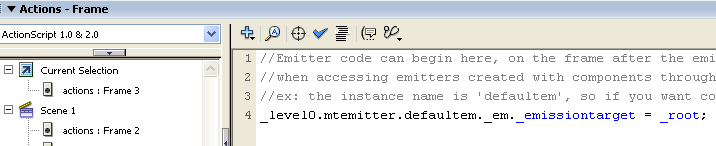
  5. So let's go to the 3rd frame in the actions layer. We need to put any code that access the emitter in the following frame it's starts on, or else it won't work.
    Paste the emitter name and type the following into that key frame like so:

    _level0.mtemitter.defaultem._em._emissiontarget = _root;

    emitter ide screenshot

    This will create all particles into the _root of the movie and allow our particles to move independently of the emitter and motion tween.

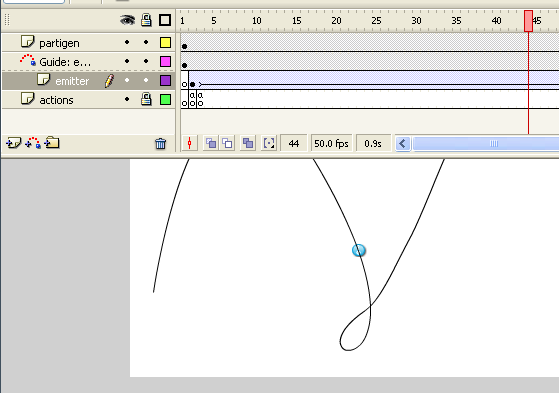
  6. You can now test your movie and see the particle trail off like you would expect them to. You can take this further and create a motion guide to make even more complex effects.
    To do this, just create a motion guide for the emitter layer and continue as you normally would for anything else.
    emitter ide screenshot


Note: having your movie not stop and loop may cause many new emitters to be created and undesirable results.